Player Contracts
|
2KNet players can make formal agreements when they have resources to share.
For example, if you have a power plant, and another city commissioner does
not, the other player may enter into an agreement with you to purchase power.
Player two would then pay you a specified amount of money during each budget
period, and your power would be available to player two.
There is "master" contract between two players. This contract
is all-encompassing-- that is, it consists of each contract the two players
have reached.
Types of Contracts
Contracts can come in three flavors:
- Radial Services - Police, Fire
- Networked Services - Power
- City-wide Services - Schools and Hospitals
Radial Services are only in effect if the "shared" areas of the
city fall into the radius covered by one of these services.
Networked Services are only in effect when the zones in question are directly
connected to an adjacent network.
City-wide Services are in effect at the time of the agreement.
And just for a little more spice, you can trade services for money.
Proposing a Contract
Contracts are put in place through the Contract Proposal window. Choose
the Propose Contract command from the Contracts menu. Use the top drop-down
menu in the proposal window to choose the type of proposal you want to make
and type your fee in the "in the amount of" window below. The
"to" box will contain the name(s) of the other participants in
the contract. As the drop-down menus indicate, sometimes you can propose
to pay for a service--like Medical facilities-- you don't currently have
in your district to another player that does, or vice-versa.

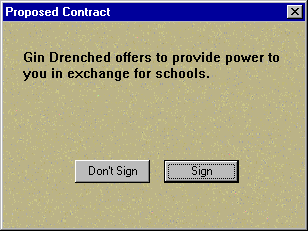
Click on the Propose button and your contract proposal will appear on your
target's screen, whereby they can choose the Don't Sign or Sign button.
You'll get a Contract Confirmed message if your pigeon, er, partner signs.
You can work out any complications using the Chat
function.
Reviewing a Contract
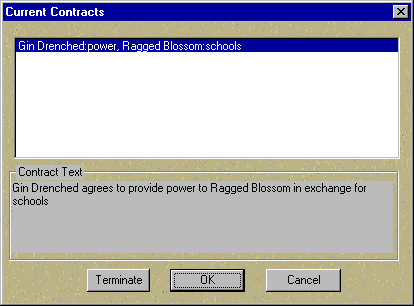
You can review all of the existing contracts by choosing the Show Contracts
command under the Contracts menu, which will display the Current Contracts
dialog box. Each item listed is a single agreement; you can see the terms
of the agreement in the Contract Text box below by choosing the contract
name. If you think the short end of a contract stick is all you're getting,
click on the contract in question and then on the Terminate button. Any
party involved in a contract may cancel at any time.
And if you thought that swindling your fellow commissioners was all that
could be done through the Contracts menu, look again. Just in case you received
a financial windfall and you've taken pity on your city comrades (or maybe
a debt has come due), just select the Write Check command from the
Contracts menu, and the Banc-o-Maxis Transfer Funds window will appear.
Select your beneficiary in the drop-down menu, type in your figure, and
click the OK button. The dough will soon be available in your recipient's
bank account, you generous soul, you.
|
(C)1996, Maxis, Inc.
|