The City Window
|
The City window is your main work area for molding, shaping and growing
your city and the land under it. It is always open while 2KNet is running.
At the top-left of the window, below the main menu, you'll see your player
name, the name of the currently selected tool, the simulation date, the
name of the city and your current funds. The standard Windows Maximize and
Minimize buttons are in the window's top-right.
On the bottom-right of the window is the Resize box, which you can click
and drag to swiftly resize the window to your particular needs.
The three toolbars provide all the tools you'll need to zone, build and
run your city. Open the City-Toolbars page for
info on the use of all the tools.
The View
The view in the City window is an isometric, simulated 3-D landscape. It
can be viewed in three different sizes, allowing you to see more or less
of your city at once, at various levels of detail.
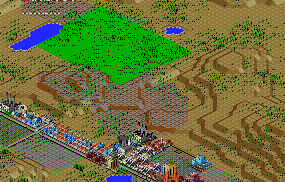
A New Land Purchase (Green Terrain, at Low Magnification)
Getting Around
Jumping from locale to locale in your city is just a click away. Choose
the Center button  from the Map tools at the top of the screen
and then click anywhere in your map to have the landscape centered in the
clicked spot. You can also click anywhere with your right mouse button,
and the map will center there. from the Map tools at the top of the screen
and then click anywhere in your map to have the landscape centered in the
clicked spot. You can also click anywhere with your right mouse button,
and the map will center there.
The Landscape
Each time the host (server) computer starts a new city in 2KNet, the opportunity
to create a new landscape is available by choosing the Edit New Map command.
You can regenerate the landscape as many times as you like from the Generate
City window, but once you settle on an acceptable city map, you and your
collaborators are stuck with it, unless you begin a different game. Of course,
you can modify your district landscape with the basic terrain tools included
in the City window as much as you like. See the Tutorial manual for details
on terrain editing on a more ambitious scale.
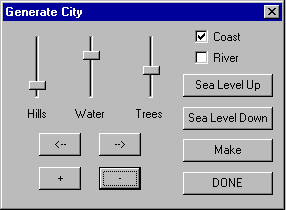
When you are in terrain-editing mode, you can make drastic changes to the
land at no cost to the city. You can raise or level mountains, dig streams,
raise or lower the sea level, and place individual trees or forests.
There are three basic elements to the landscape: land, water and trees.
The land in 2KNet is divided into small squares, called tiles. Tiles can
be raised or lowered to provide 32 levels of altitude. Land that is below
sea level will be under water.
Water in 2KNet flows downhill, as all good water should. When you generate
a new landscape in terrain-editing mode, you can choose whether or not you
want a river running through the landscape, and you can, if you want, have
one edge of your city be a coastline. Your landscape can also have streams,
ponds and lakes. And you can raise or lower sea level, to make your city
either a desert or a chain of islands.
Trees in 2KNet, as in the real world, are big plants that provide shade
and homes for wildlife. They add an aesthetic touch to cities, and improve
land value.
Demand Indicator
The Demand Indicator gives you a constant readout of what types of zones
the Sims in your city need. Depending on the size of your city, the indicator
can take up to a few minutes to respond to your changes, so be patient.
The bars stick up to show demand and down to show oversupply for Residential
(R), Commercial (C) and Industrial (I) zones. Remember that the RCI is citywide,
and not merely for your district.

Compass
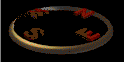
Near the top-right corner of your City window is the Compass, which lets
you know what's up (or down) on your map. Use the Rotate Clockwise and Rotate
Counter-clockwise buttons to test its knowledge.
|
(C)1996, Maxis, Inc.
|